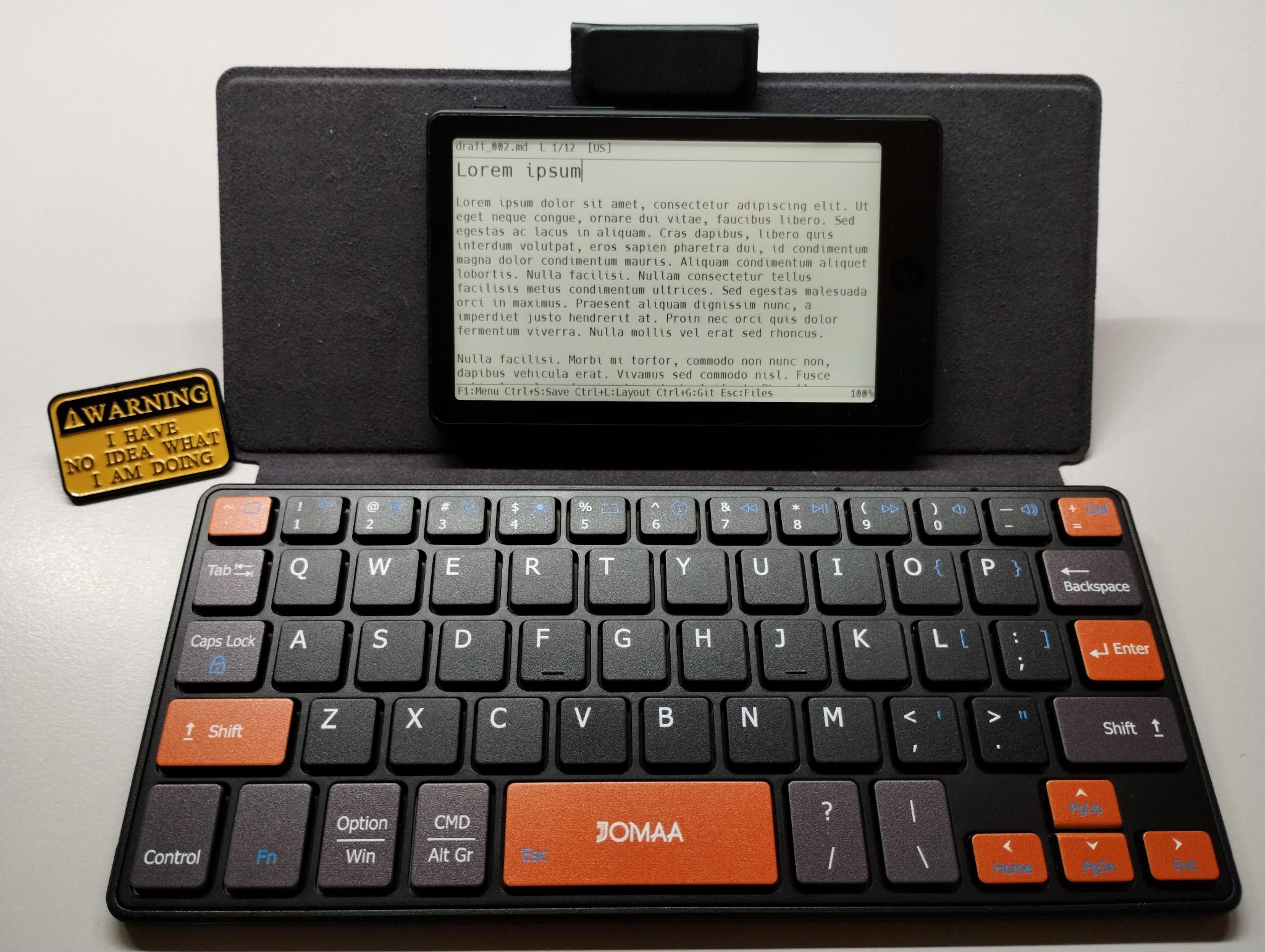
What is Draftling?
Draftling is an open-source software project that implements a writerdeck, also known as a word processor: a small device dedicated to writing texts on the go. You take one of the supported devices, flash the firmware, connect a Bluetooth Low Energy keyboard, and you are ready to write. You can also configure Wi-Fi access and a Git repository, so that your text files are uploaded and kept in sync if you edit them from multiple places.
Setting up a device
-
Get a supported device
The following devices are ready to use out of the box. See also the project page for a variety of supported DIY boards.
- Xteink X4 Pro unlocked devices only
- Xteink X4 Classic unlocked devices only
- Seeed reTerminal Sticky
- M5Stack PaperMono / PaperMono-Lite
- LilyGO T5 E-Paper S3 Pro / Pro Lite
- Waveshare ESP32-S3-Touch-LCD-3.49
- Seeed Studio reTerminal E1001 7.5" e-paper, metal body
- M5Stack PaperS3 discontinued
-
Flash the firmware
Connect the device to your computer with a USB cable and open the web flasher in your browser. Allow the USB serial connection, select your hardware type, and flash the firmware.
-
Pair a keyboard
You will need a Bluetooth Low Energy (BLE) keyboard to work with the editor. There are hundreds of models on the market, so choose the one that suits you best. If BLE pairing takes too long, hold the Boot button on your Draftling device for 2 seconds: it will forget all previous pairings and search for a new keyboard.
-
Insert a MicroSD card
Insert a formatted MicroSD card into the device. It does not need to be large, since Draftling only works with text.
Preferences and settings
Press F1 to access a number of settings, such as the font size, the screen orientation, and your preferred keyboard layout(s). Append-only mode, if enabled, prevents you from accidentally erasing your text. The Wi-Fi connection dialog lets you set up the Internet connection used for file uploads.
You can also enable USB access to your SD card in the F1 menu. This way, you do not need to take the card out of the device and look for an SD card reader. A few devices like Seeed reTerminal E1001, reTerminal Sticky and Elecrow CrowPanel do not support this on their USB port.
File synchronization with Git
Draftling uses Git for file synchronization. If you have an
account on GitHub, Codeberg, or another public Git hosting
service, create a read-write access token for your repository
and put it in git.cfg on the SD card. The
Git sync setup guide walks you
through it step by step.
Writing
You press Ctrl+N to create a new file, Ctrl+S to save it (Draftling will prompt for a file name), and the rest is pretty easy and standard. F10 shows a help window with all the shortcuts.
Once you have a piece of text ready, press Ctrl+W to connect Draftling to the Internet, then Ctrl+G to synchronize your files with the Git server.
You can review your writing on your computer, either by browsing the Git repository in a web browser or by downloading the files with a Git client. Commit and push your edits to Git, and Draftling will pick them up during the next synchronization.
Licenses and the use of LLM
Draftling is licensed under the MIT License. Draftbox is licensed under the Apache License 2.0.
Most of the coding was done by Claude Code. Without it, I would not have found the time to implement this project. All of the engineering and design was done by a human brain.